
Step 1 of 6
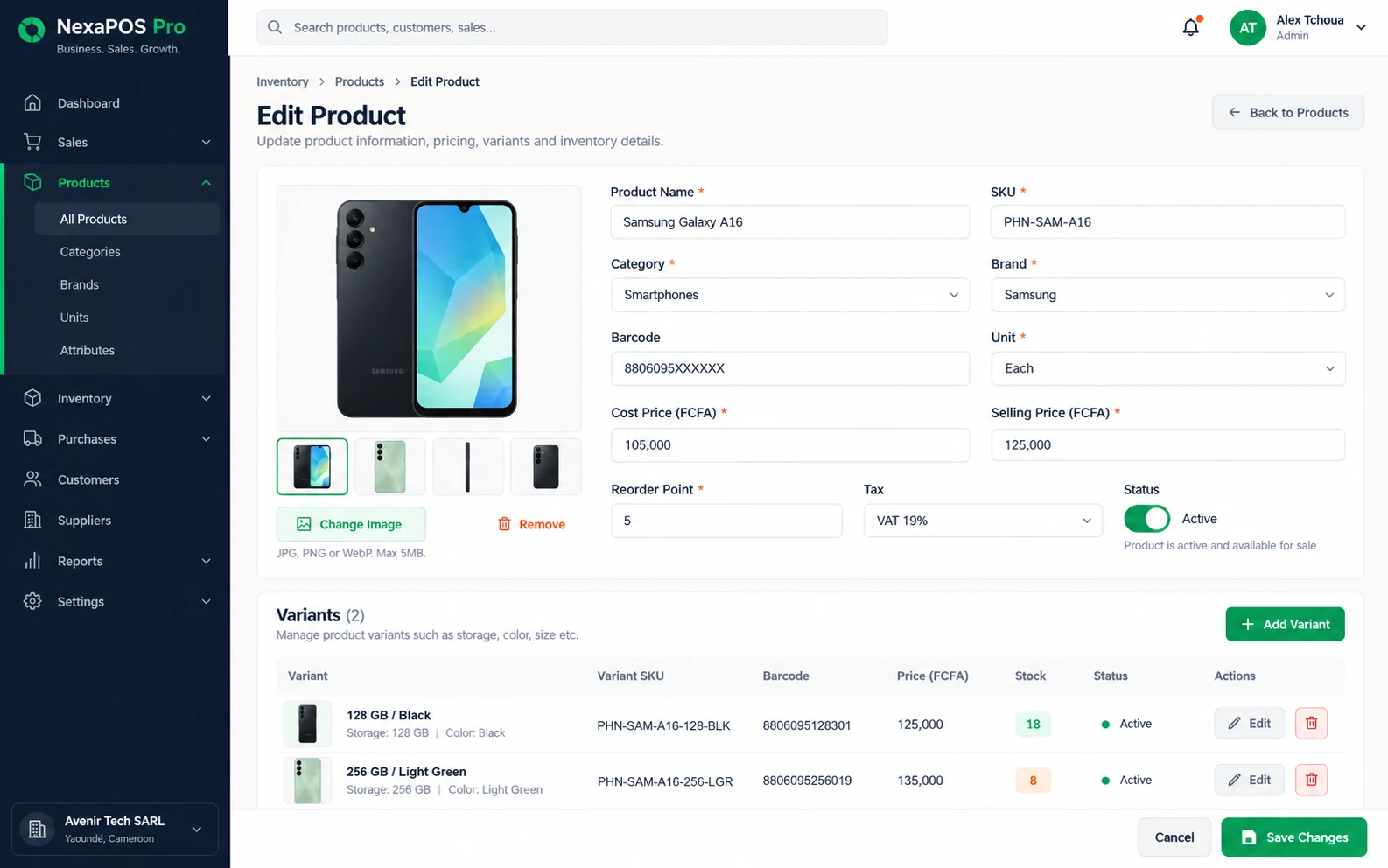
Add your products
Create products with categories, variants, barcodes and labels, and record where each item is stocked.
About inventoryDemo data
Product tour
Follow one sale from the product catalogue to the branch report, then explore each part of the platform. Screens show a demo business with sample data.
Guided walkthrough
Six steps from adding a product to comparing branches.
The whole journey of one sale, from the product catalogue to the branch report.
Step 1 of 6
Create products with categories, variants, barcodes and labels, and record where each item is stocked.
About inventoryStep 2 of 6
Scan barcodes or pick products to build the sale, adjust quantities, apply controlled discounts and select the customer.
About point of saleStep 3 of 6
Take payment through practical payment workflows, redeem gift cards, vouchers or loyalty rewards, and give the customer a receipt.
About point of saleStep 4 of 6
Sales and stock stay connected: movement history shows where each item went, and reorder alerts flag items before they run out.
About inventoryStep 5 of 6
See sales over time and by payment method, top products, gross margin and how each member of staff performed.
About reporting and analyticsStep 6 of 6
Compare branches side by side, check stock per branch and give each person the access their role needs, without calling round.
About multi-branch managementStep 1 of 6: Add your products
Explore the platform
Choose an area to see what it covers.
Ring up a sale quickly and give every customer a clear record of their purchase.
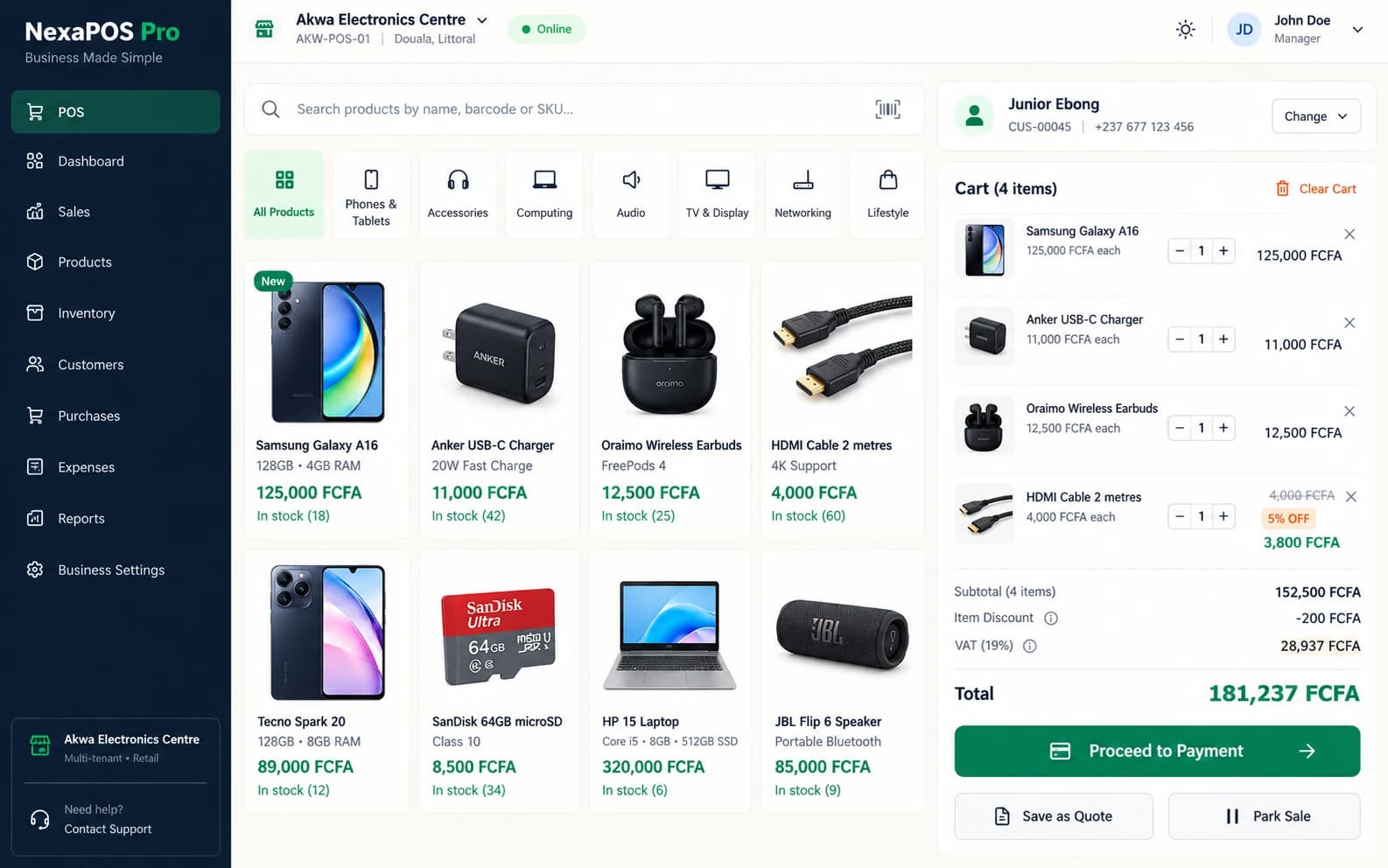
Screenshot 1 of 2: Checkout with a sale in progress
Keep the product catalogue and stock levels in one place, for every branch.
Order from suppliers and record what actually arrived.
Tie cash to the shift and the person who handled it.
Give each person the access their role needs, and see what each team member did.
Run several branches with the same clarity as one.
Know your customers and what they buy.
Reward repeat purchases so regulars keep coming back.
Reach the right customers on the channel that suits them.
See what is selling, what it earns and who sold it.
Offline-capable checkout for eligible sales. Eligible sales can be captured during a connection loss and synchronized safely later.
Offline-capable checkout
Offline-capable checkout for eligible sales. Eligible sales can be captured during a connection loss and synchronized safely later.
Your team keeps serving customers for eligible sales.
Each eligible sale is recorded at the counter while the connection is down.
Captured sales are synchronized safely, so records catch up.
Eligible sales can be captured and are synchronized safely once the connection returns. Not every function works offline.
Tell us about your branches, terminals and team, and we will walk you through NexaPOS in a live demo.